Skip to content
If you’ve been writing code for any amount of time, you’ve probably wondered: what if my editor could actually understand what I’m trying to build? That’s exactly the promise behind Cursor AI, the AI-powered code editor that’s been making serious waves in the developer community since its launch.
We spent three weeks using Cursor as our primary code editor across multiple projects – from a React dashboard to a Python data pipeline – to find out whether it lives up to the hype. Here’s our honest, no-nonsense review.
What Is Cursor AI?
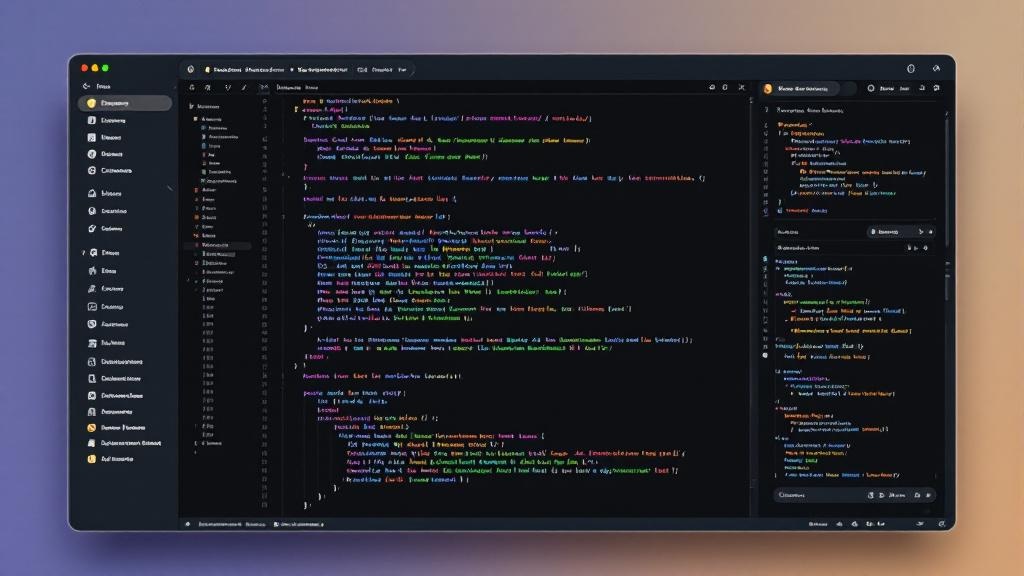
Cursor is a code editor built from the ground up with AI at its core. Unlike extensions like GitHub Copilot that bolt AI onto existing editors, Cursor is a standalone IDE (based on VS Code’s open-source foundation) that deeply integrates large language models into every aspect of the coding workflow.
Think of it as VS Code’s smarter cousin. The interface will feel instantly familiar if you’ve used VS Code, but Cursor adds powerful AI features: multi-line code completion, natural language editing, a built-in AI chat that understands your entire codebase, and the ability to generate or refactor code with simple instructions.
Founded by a team of MIT graduates, Cursor has quickly attracted a loyal following among professional developers, with notable endorsements from engineers at companies like Stripe, Shopify, and Vercel.
Key Features We Tested
1. Tab Autocomplete (Next-Level Code Completion)
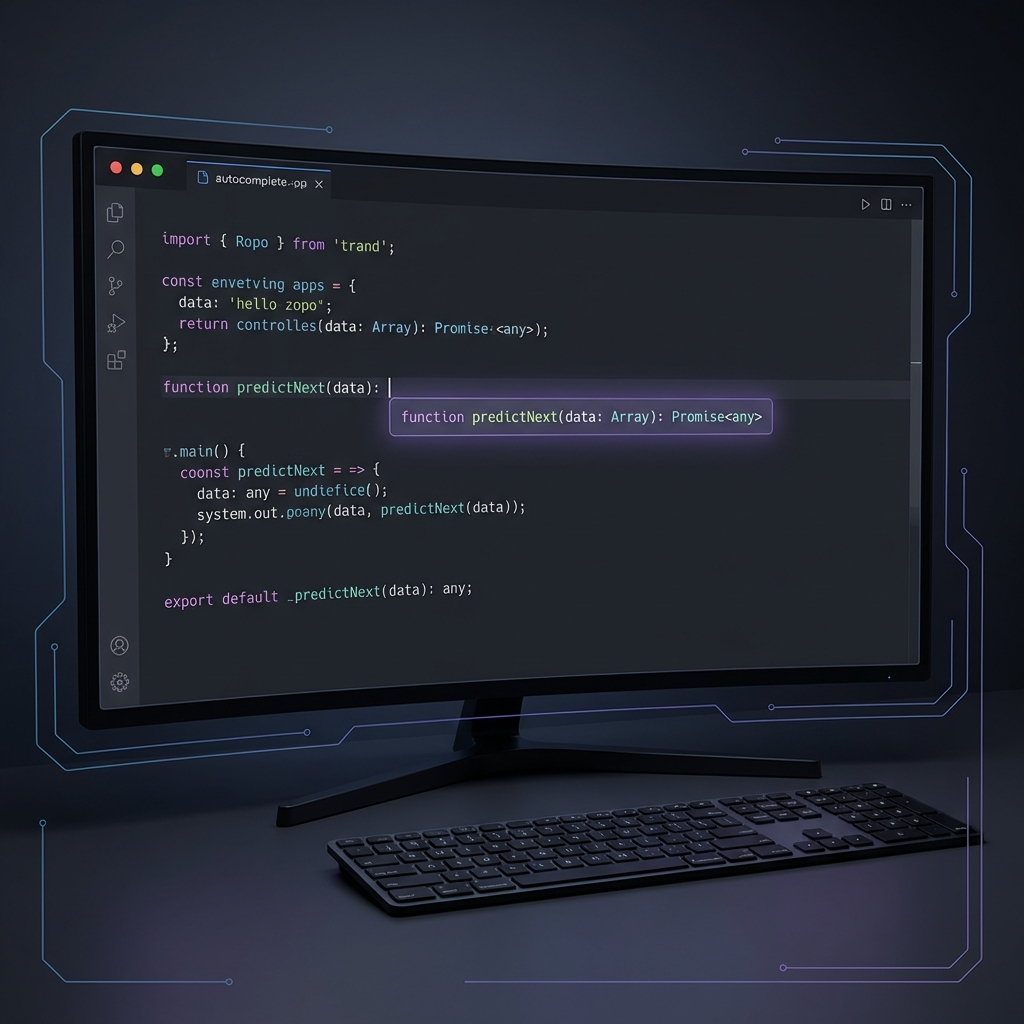
Cursor’s autocomplete goes far beyond single-line suggestions. It predicts multi-line code blocks, understands the context of your current file, and often anticipates exactly what you’re about to write next. During our React project, it consistently generated correct component structures, hook patterns, and even proper TypeScript interfaces based on our existing code.
The predictions are fast – typically appearing within 200-300 milliseconds – and you accept them with a simple Tab press. When the suggestion isn’t quite right, pressing Escape dismisses it without interrupting your flow. We found the accuracy to be noticeably better than GitHub Copilot, especially for complex multi-line completions.
2. CMD+K: Natural Language Editing
This is where Cursor really shines in our Cursor AI review. Select any block of code, press CMD+K (or Ctrl+K on Windows), and type what you want in plain English. For example: “Add error handling for network failures” or “Convert this function to async/await” – and Cursor rewrites the code accordingly.
We tested this extensively during our Python data pipeline project. Commands like “Add retry logic with exponential backoff” or “Optimize this database query to use batch inserts” produced clean, production-ready code on the first try about 70% of the time. The other 30% needed minor tweaks, but it was still dramatically faster than writing everything from scratch.
3. AI Chat with Codebase Context
Cursor’s built-in chat panel (CMD+L) lets you have a conversation with an AI that actually understands your project structure. You can ask questions like “How does the authentication flow work in this project?” or “Where is the payment processing logic?” and get accurate, context-aware answers with direct file references.
Another finding in our Cursor AI review: the chat supports @mentions – tag specific files, folders, or documentation URLs to give the AI additional context. This proved invaluable when onboarding to a new codebase. Instead of spending hours reading through unfamiliar code, we could ask targeted questions and get answers in seconds.

4. Multi-File Editing with Composer
Cursor’s Composer feature (CMD+I) is designed for larger changes that span multiple files. Describe what you want – “Create a REST API endpoint for user profiles with validation and tests” – and Cursor generates or modifies code across multiple files simultaneously.
In our Cursor AI review, we found Composer most useful for scaffolding new features. It correctly created route handlers, model definitions, validation schemas, and basic test files in one go. It’s not perfect for complex architectural changes, but for routine feature scaffolding, it saves significant time.
5. Codebase Indexing
When you open a project in Cursor, it indexes your entire codebase to build a semantic understanding of your code. This indexing powers all the AI features – autocomplete, chat, and editing all benefit from understanding how your files relate to each other.
Indexing is fast for most projects (under a minute for our 50K-line React project) and runs incrementally as you make changes. The result is AI suggestions that feel genuinely aware of your project’s patterns, conventions, and architecture.
Cursor AI Review: Pricing and Is It Worth the Cost?
Cursor offers three pricing tiers in 2026:
- Hobby (Free): 2,000 code completions per month, 50 slow premium requests. Enough to try it out, but you’ll hit limits quickly on active projects.
- Pro ($20/month): Unlimited completions, 500 fast premium requests per month, access to GPT-4 and Claude models. This is where most individual developers land.
- Business ($40/user/month): Everything in Pro plus admin controls, centralized billing, privacy mode that ensures zero data retention, and SAML SSO.
In this Cursor AI review, compared to GitHub Copilot ($10/month for individuals), Cursor is more expensive. But the feature set is also significantly broader. If you factor in the time saved – we estimated roughly 30-40% faster development across our test projects – the $20/month pays for itself within the first few hours of use each month.
Cursor vs GitHub Copilot: How Do They Compare?
This is the question everyone asks when reading any Cursor AI review, so let’s address it directly:
Code completion quality: Cursor edges ahead with better multi-line predictions and more context-aware suggestions. Copilot is still excellent for single-line completions but falls behind on complex, multi-line code generation.
Codebase understanding: Cursor wins decisively here. Its indexing system means every AI feature understands your full project. Copilot’s context window is more limited, primarily focusing on open files and nearby code.
Natural language editing: Cursor’s CMD+K inline editing is more intuitive and powerful than Copilot’s chat-based approach. The ability to select code and describe changes in plain English is a workflow game-changer.
Editor ecosystem: Copilot works as an extension in VS Code, JetBrains, Neovim, and others. Cursor is a standalone editor. If you’re deeply invested in a specific IDE’s ecosystem or extensions, this is a real consideration.
Price: Copilot is cheaper at $10/month vs Cursor’s $20/month. For hobbyists or developers who primarily need autocomplete, Copilot offers better value. For professional developers who want the full AI-powered workflow, Cursor justifies the premium.
What We Liked
- Seamless VS Code migration: All our extensions, themes, and keybindings transferred with one click. The switch was painless.
- Speed of AI suggestions: Responses are fast enough to feel native, not like waiting for an API call.
- Codebase awareness: The AI actually understands project structure, not just the current file. This makes a massive difference for large projects.
- Privacy options: You can enable privacy mode to ensure your code is never stored or used for training. Critical for proprietary codebases.
- Model flexibility: Choose between GPT-4, Claude 3.5, and other models depending on the task. Different models excel at different things.

What Could Be Better
- Extension compatibility: While most VS Code extensions work, some specialized ones (particularly remote development extensions) can be finicky.
- Resource usage: Cursor uses more RAM than VS Code (roughly 200-400 MB more), which matters on lower-spec machines.
- Learning curve for AI features: There are many AI shortcuts and features to learn. The documentation is good, but it takes a week or two to build muscle memory.
- Occasional hallucinations: Like all AI tools, Cursor sometimes suggests code that looks plausible but contains subtle bugs. You still need to review everything it generates.
- Request limits on Pro: 500 fast premium requests per month sounds like a lot, but heavy users can burn through them in 2-3 weeks.
Who Should Use Cursor AI?
Best for:
- Professional developers working on medium-to-large codebases
- Full-stack developers who switch between languages and frameworks frequently
- Teams that want AI-assisted development with enterprise privacy controls
- Developers who want more than just autocomplete – they want an AI coding partner
Not ideal for:
- Developers deeply embedded in JetBrains IDEs (IntelliJ, PyCharm) who rely on IDE-specific features
- Hobbyists on a tight budget – GitHub Copilot offers 80% of the value at half the price
- Developers working primarily on very small scripts or one-off tasks where AI context isn’t as valuable
Cursor AI Review Verdict: 8.5/10
Based on our Cursor AI review, it is the most complete AI-powered code editor available in 2026. It goes beyond simple autocomplete to offer a genuinely intelligent coding experience that understands your entire project, responds to natural language commands, and meaningfully accelerates development speed.
Is it perfect? No. The resource usage is higher than plain VS Code, extension compatibility isn’t 100%, and the request limits on the Pro plan can feel restrictive for power users. But these are minor friction points in what is otherwise an excellent tool.
If you write code professionally and you’re looking for an AI tool that goes deeper than autocomplete, Cursor is the best option on the market right now. The free tier is generous enough to give it a proper test drive, and most developers who try it – as confirmed in this Cursor AI review – find it hard to go back to a traditional editor.
If you’re interested in other AI tools, check out our ChatGPT vs Claude vs Gemini comparison and our Jasper AI review.
Try Cursor AI for free at cursor.com
Frequently Asked Questions
Is Cursor AI free?
Yes, Cursor offers a free Hobby tier with 2,000 code completions and 50 slow premium requests per month. For unlimited usage, the Pro plan costs $20/month.
Can I use my VS Code extensions in Cursor?
Most VS Code extensions work in Cursor since it’s built on the same open-source foundation. You can import all your extensions, themes, and settings with one click during setup.
Is my code safe with Cursor?
Cursor offers a privacy mode that ensures your code is never stored or used for model training. The Business plan includes additional security features like SOC 2 compliance (as noted by Wired) and zero data retention guarantees.
Does Cursor work offline?
The editor itself works offline as a standard code editor, but the AI features require an internet connection since they rely on cloud-based language models.
Is Cursor better than GitHub Copilot?
For most professional developers, yes. Cursor offers superior codebase understanding, natural language editing, and multi-file generation. However, Copilot is cheaper and works within existing IDEs, making it better for casual use or developers who prefer JetBrains products.